
How to Update Appointment Actions
DreamLeads allows you to apply different actions to an appointment once it has been booked in a calendar. An example is when a lead did not show up during a call or is a No Show.
Step 1.
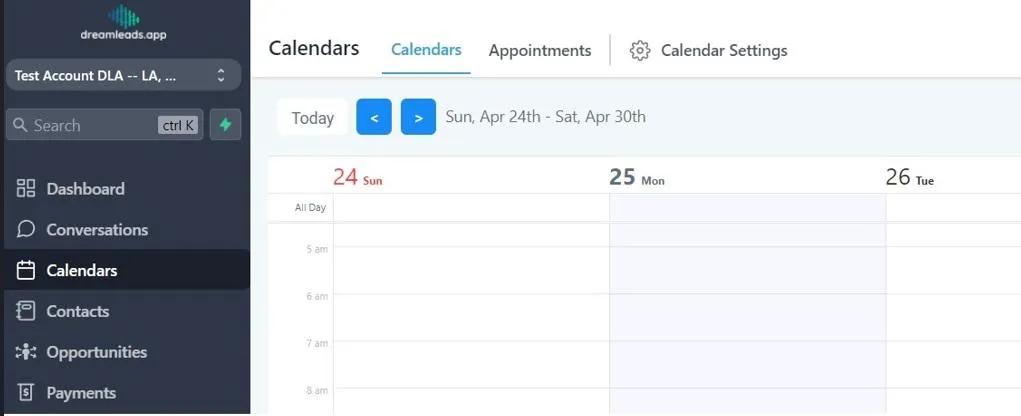
Go to Calendar and click on the appointment tab
Step 2
On the Appointment Tabs you will see all the list of appointments that were booked using the calendar in Dreamleads. To the left the action button provides you with different action you can apply on a specific appointment. Below are the actions that are available.
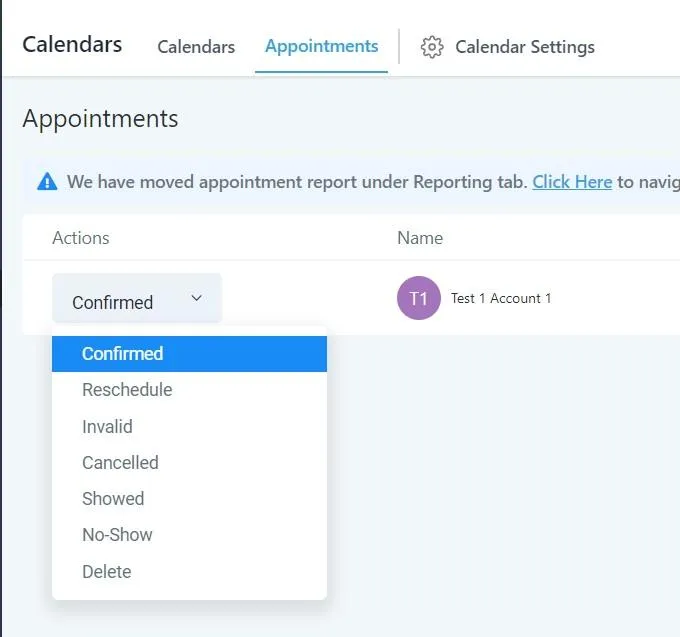
The different action is important to categorize how many of the appointments actually showed up in the appointment cancelled or a no show. You can access the details of the no show automation here for more details
Conversations
Reporting
If you have any suggestions for an automation or questions you can send an email to [email protected]