
How to Connect your Calendar
There are 2 types of calendar that we can connect with DreamLeads
- Outlook
- Google Calendar
How to Connect Google Calendar
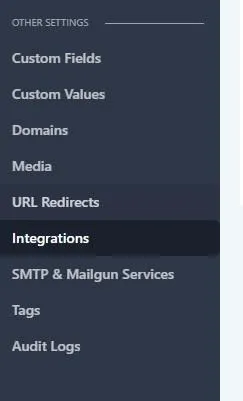
Step 1: Click on Settings and click on Integrations.
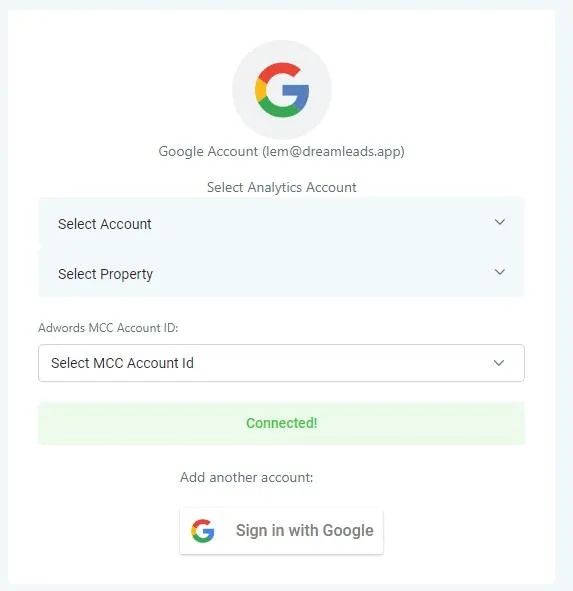
Step 2: Once you are in the Integration page, look for Google and if you haven't connected an account yet click on Sign in with Google.
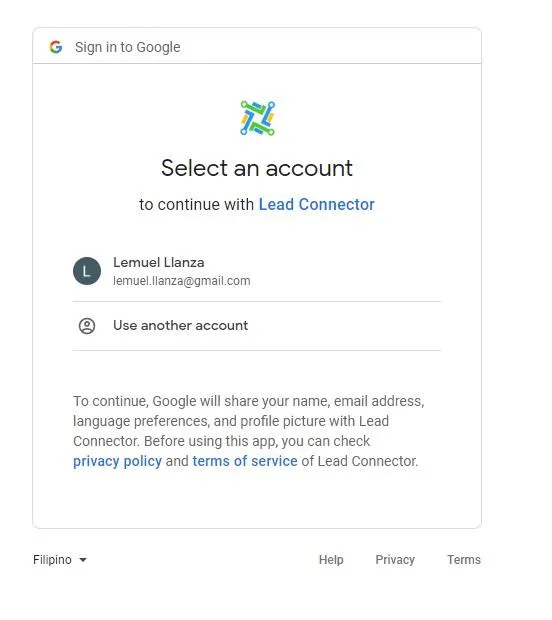
Step 3: Once you click on Sign In, a pop up will appear and will ask you to select which Google account you wanted to integrate. If you can't see the account you want to integrate, click on Use another account to log in with that particular account.
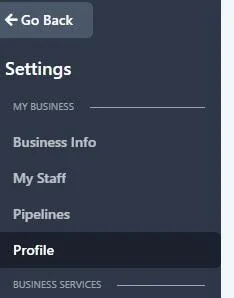
Step 4: When you have connected your Google account with the calendar, you will want to integrate. Click on Profile to go back to your profile and update your calendar availability.
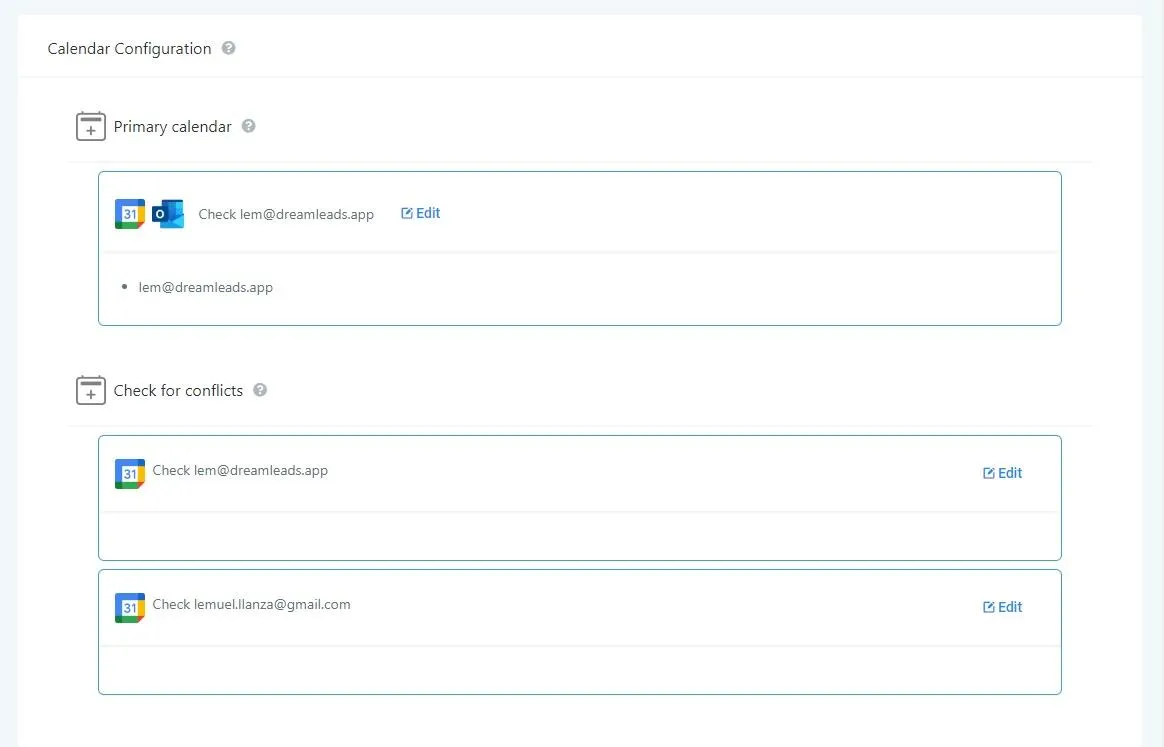
Step 5: In the Profile page, look for Calendar Configuration at the bottom right. Under Primary calendar, click on Edit.
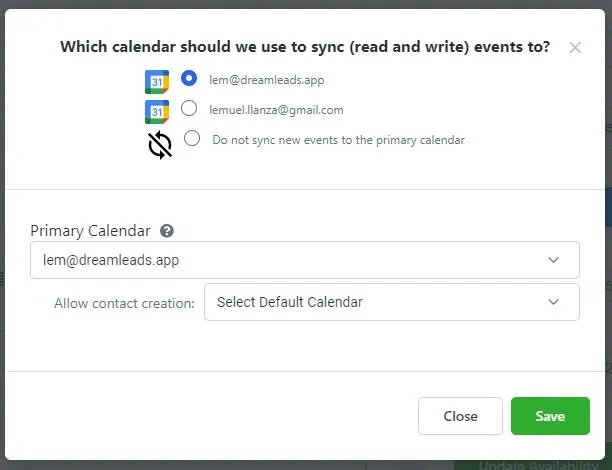
Step 6: When you click on the edit button, a pop up will appear similar to the image below (please take note that this would look different on your end but the idea is similar). Once you have integrated a Google account with the calendar you want to access, select the account and in Primary Calendar select the Primary Calendar. If you haven't created multiple calendars in your Google account, you can just click on the dropdown for Primary Calendar and select the Default Calendar.
Conversations
Reporting
If you have any suggestions for an automation or questions you can send an email to [email protected]