
Bulk Actions - Add or Remove Tags
Using the Bulk Actions features in your Contacts/Smart Lists section, you can perform multiple one-off actions to selected or all contacts. Here’s how to add or remove tags using the bulk action feature:
Step 1: Choose Your Contacts
Navigate to your contacts.
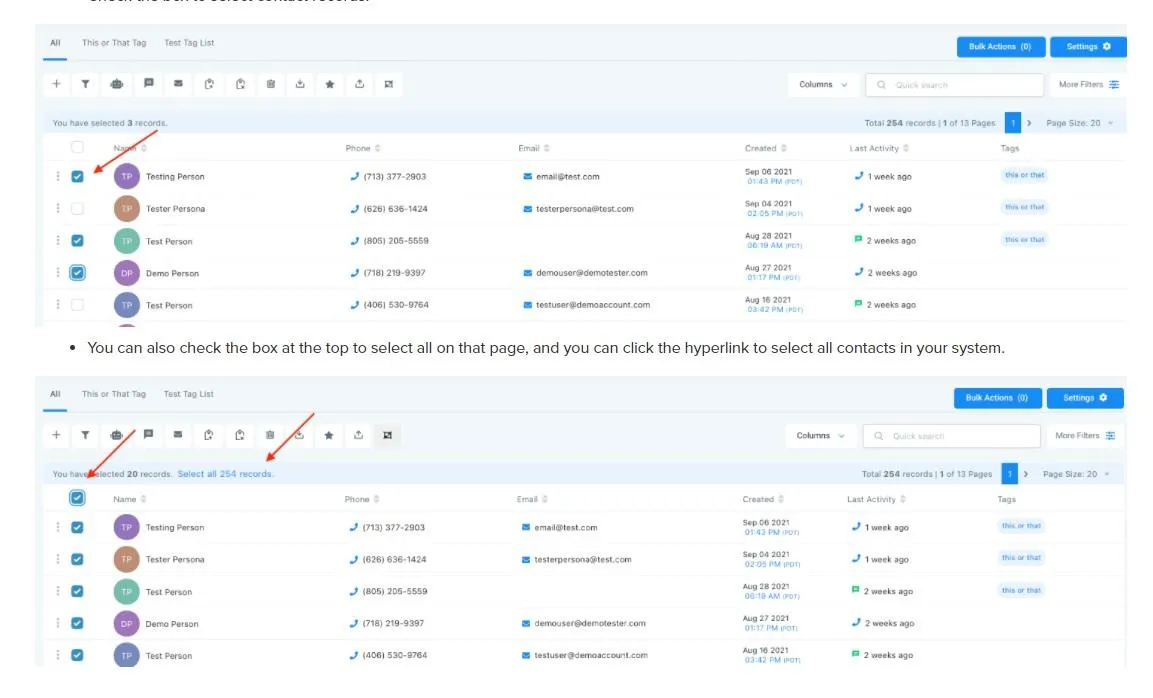
Check the box to select contact records.
Step 2: Choose Your Action
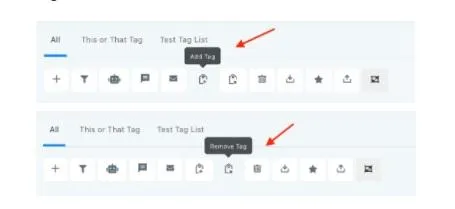
Choose the icon for “Add Tag” or “Remove Tag”.
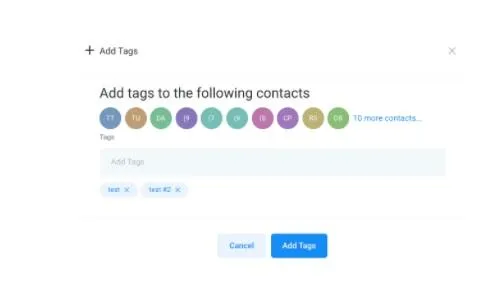
In the pop-up window that appears, type in a keyword and select one or more tags to apply or remove.
Add tags:
Remove tags:
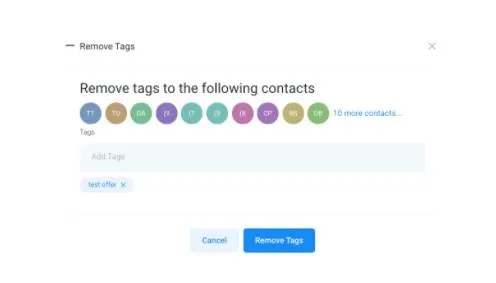
Then click “add tags” to add them to contacts, or “remove tags” to remove them.
Conversations
Reporting
If you have any suggestions for an automation or questions you can send an email to [email protected]